 Shipped by Prompt
This guide takes an app that works inside an AI builder and gives it a public Netlify address. You need a free GitHub account and a free Netlify account. It takes about as long as reading it, plus a few minutes of waiting for the first build.
Not sure Netlify is the right home yet? Read Where to host an app you built with AI first.
Step 1: get the code into GitHub
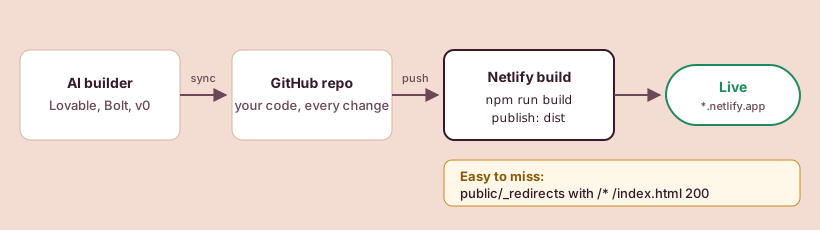
Netlify builds your site from a Git repository, so the code has to leave the builder first. Each builder does this differently.
Lovable. Lovable has two-way sync with GitHub, GitLab and Bitbucket. Connect GitHub from the project, let Lovable create the repository, and from then on every change you make in Lovable is pushed to that repository. Changes pushed to the repository also come back into Lovable, so you can keep editing with prompts.
Bolt. Bolt can connect a project to GitHub for automatic sync, or let you download the project as a zip file. Bolt also has a shortcut that skips GitHub entirely: it can publish straight to a connected Netlify account instead of Bolt hosting. The shortcut is quicker for a first deploy. The GitHub route is better once you want preview links and a history of every change, so this guide follows it.
v0. v0 connects to GitHub repositories and lets you export the code to deploy elsewhere. v0 projects are Next.js apps rather than plain Vite apps; Netlify detects Next.js and sets it up, but the settings in step 3 will look different from the ones shown here.
When this step is done you should be able to open github.com, find the repository, and see files such as package.json, index.html and a src folder.
Step 2: import the repository on Netlify
- Log in to Netlify and select Add new project, then Import an existing project.
- Choose GitHub as your Git provider and authorize Netlify. If you only want Netlify to see one repository, grant access to that repository alone.
- Pick the repository the builder created.
Step 3: check the build settings
Netlify reads the project and fills in the build settings for the framework it detects. For a Vite app, which is what Lovable and Bolt produce, it suggests a build command and a publish directory for you. Check them before you press deploy:
| Setting | What it means | Usual value for a Lovable or Bolt app |
|---|---|---|
| Build command | The command that turns your source code into website files | npm run build |
| Publish directory | The folder those files land in | dist |
If you are unsure, open package.json in the repository. The line under "scripts" that starts with "build" tells you what the build command runs. For Vite, the output folder is dist unless someone changed it in vite.config.
If the app uses Supabase or another service, add its public keys now under Project configuration > Environment variables, using exactly the names the code expects (look for import.meta.env. in the code). Only add public keys here. Secret keys do not belong in a frontend build at all; the API keys guide explains where they go instead.
Step 4: add the redirect that every single-page app needs
This is the step most AI-built apps fail on, and the failure only shows up after the deploy looks fine.
Lovable and Bolt apps are single-page apps. There is one real HTML file, index.html, and the app's JavaScript draws a different screen for /pricing or /dashboard. Netlify does not know that. When someone opens /dashboard directly, or presses refresh on it, Netlify looks for a file at that path, finds none, and shows "Page not found".
Netlify's docs give the fix: a rewrite rule that serves index.html for every path with a 200 status. Create a plain text file called _redirects, with no file extension, containing this one line:
/* /index.html 200
The file must end up in the publish directory. In a Vite project, anything in the public folder is copied into dist during the build, so public/_redirects is the right place. You can ask the builder to do it with a prompt like: "Create a file at public/_redirects containing the line /* /index.html 200".
If you prefer one config file, the same rule can go in a netlify.toml file at the root of the repository instead:
[[redirects]]
  from = "/*"
  to = "/index.html"
  status = 200
Real files still win. Netlify only applies this rewrite when no file exists at the requested path, so your images and scripts keep loading normally.
Step 5: deploy and check
Press deploy. Netlify shows the build log while it runs. When it finishes you get an address ending in .netlify.app.
Before you share it, check four things:
- Open the address. The home screen should look like it does in the builder.
- Click into an inner page, then press refresh. If you see "Page not found", the
_redirectsfile did not reach the publish directory. - Log in or load data, if your app has either. If data is missing, an environment variable name is probably wrong or missing.
- Open the site on your phone.
If the build itself fails, the log tells you which step broke. The most common causes are collected in Fixes for Netlify deploy errors.
What happens on the next change
From now on, each time the builder pushes to the main branch on GitHub, Netlify builds and publishes the new version. Each production deploy uses credits on Netlify's credit-based plans, so an afternoon of small prompt edits can add up. Is Netlify's free plan enough? shows how to keep that under control.
When the app works on its .netlify.app address, give it a real name: Put your own domain and HTTPS on an AI-built app.
Sources, checked by hand
- Netlify: Deploy from a repository2026-10-31
- Netlify: Vite setup guide2026-10-31
- Netlify: Configure builds2026-10-31
- Netlify: Rewrites and proxies2026-10-31
- Netlify: Redirects overview2026-10-31
- Lovable: Subscription plans (Git sync)2026-10-31
- Bolt: Project files and download2026-10-31
- Bolt: Publish to Netlify2026-10-31
- v0 FAQ2026-10-31